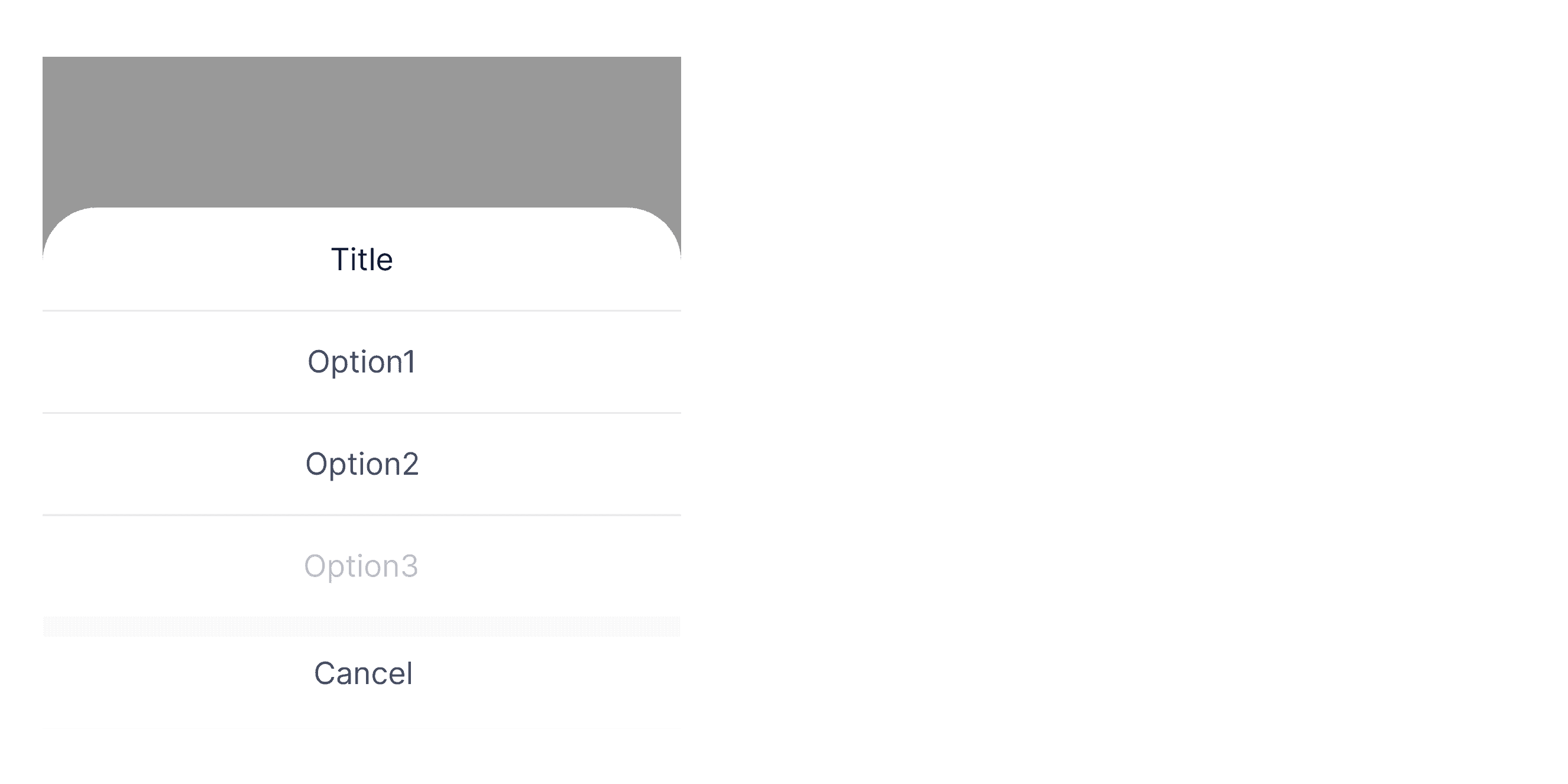
What is Sheet
In a design system, a "sheet" is a UI element that displays additional content as a partially overlaying panel, allowing users to view or interact with related information without fully leaving the current context. It’s often used for presenting detailed options, settings, or actions while maintaining partial interaction with the underlying content.
Anatomy Sheet
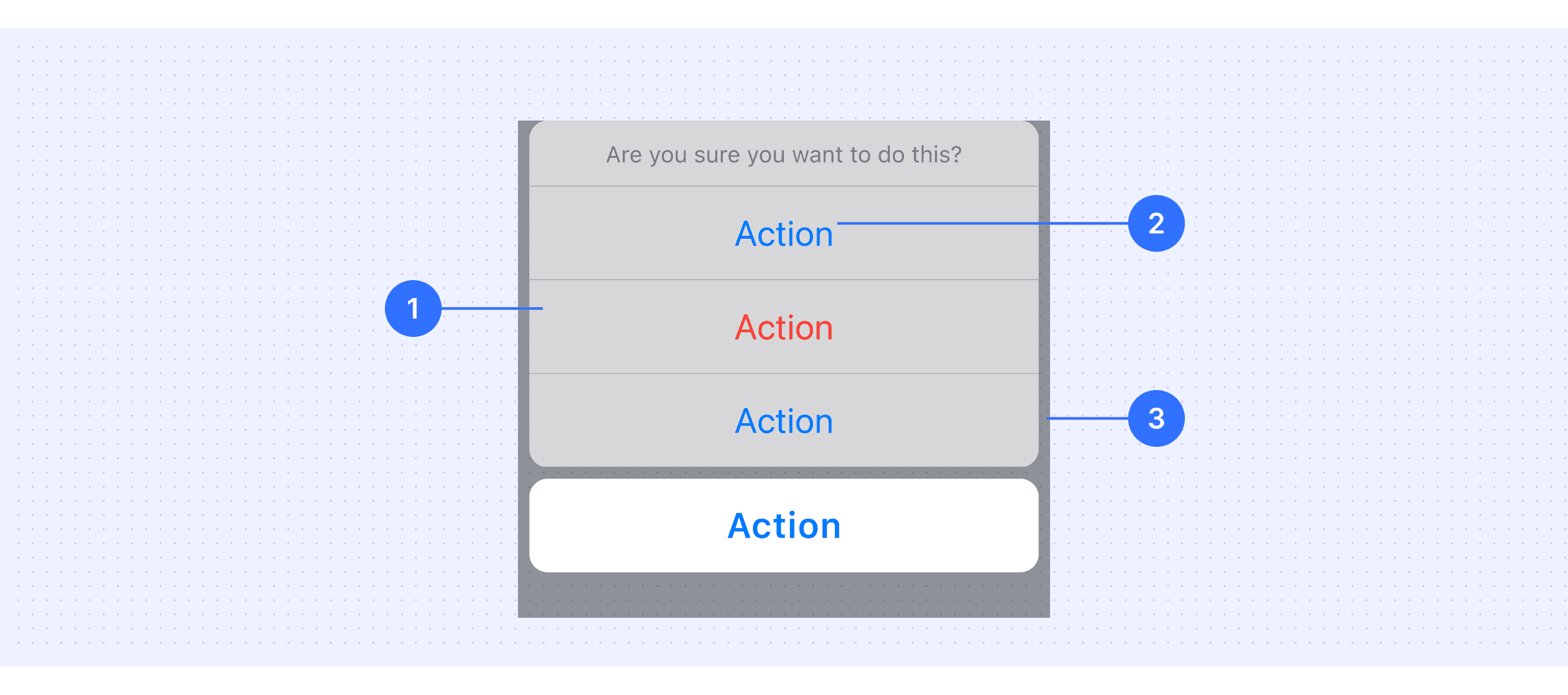
Container: The main body of the sheet, containing all content and actions.
Action Items: Such as a close button, confirm button, or other interactive elements.
Scrim: A semi-transparent layer behind the sheet, used to focus the user's attention on the sheet's content while de-emphasizing the background.
Core features
Context Preservation: Allows users to access additional information or perform actions without fully leaving the current screen.
Partial Overlay: Appears as a panel that partially overlays the main content, maintaining visibility of the underlying screen.
Draggable Interaction: Often includes a drag handle, enabling users to adjust its height or dismiss it with a swipe gesture.
Focused Attention: Uses a scrim (semi-transparent background) to emphasize the sheet content while de-emphasizing the background.
Comparison of Usage in Popular Design Systems
Now, let's look at how some well-known design systems define and implement sheets:
Learn how different design systems, such as Material Design, HIG Design, and Ant Design, use sheets. Explore their features and guidelines, like interaction methods and content support, to find the best match for your project.
Default Styles
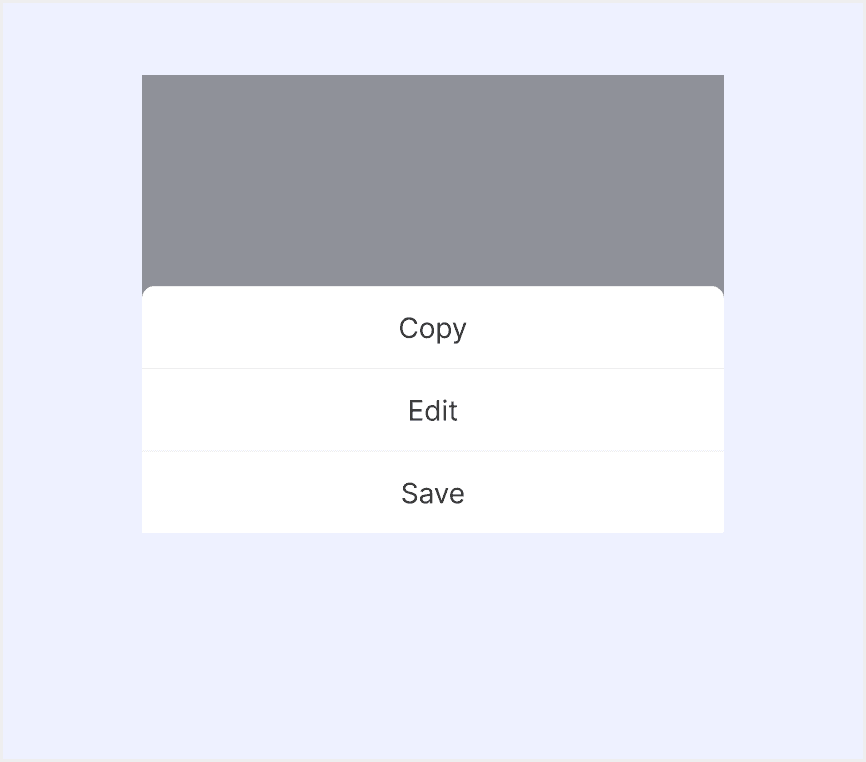
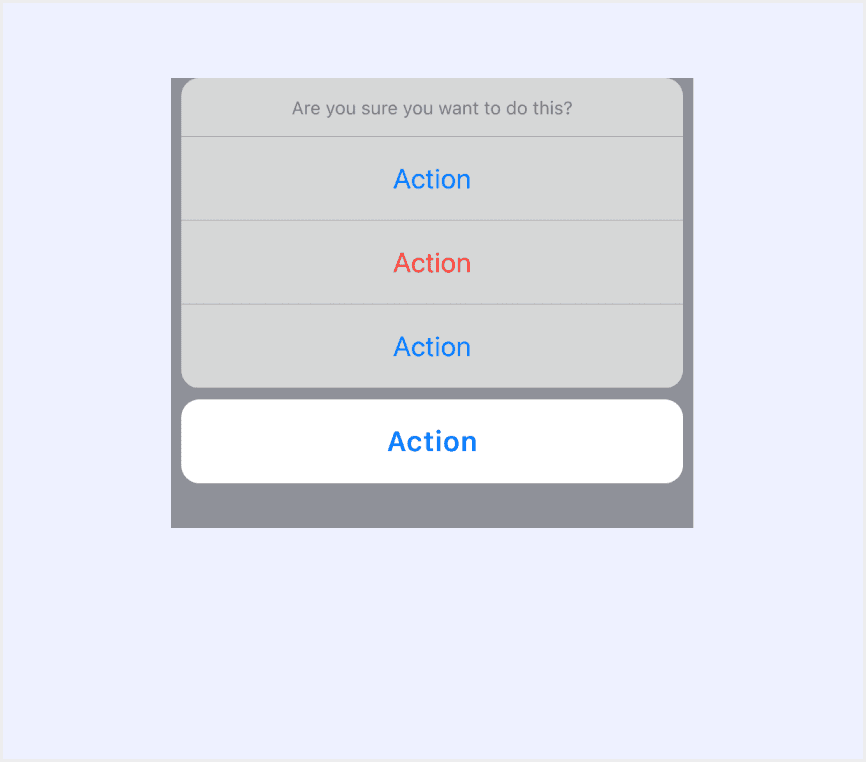
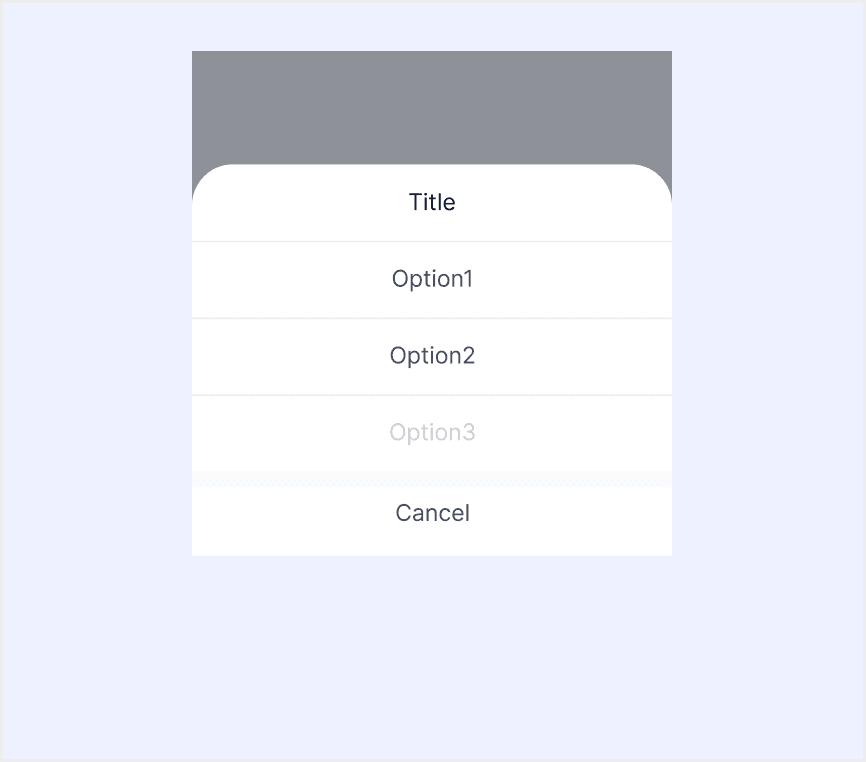
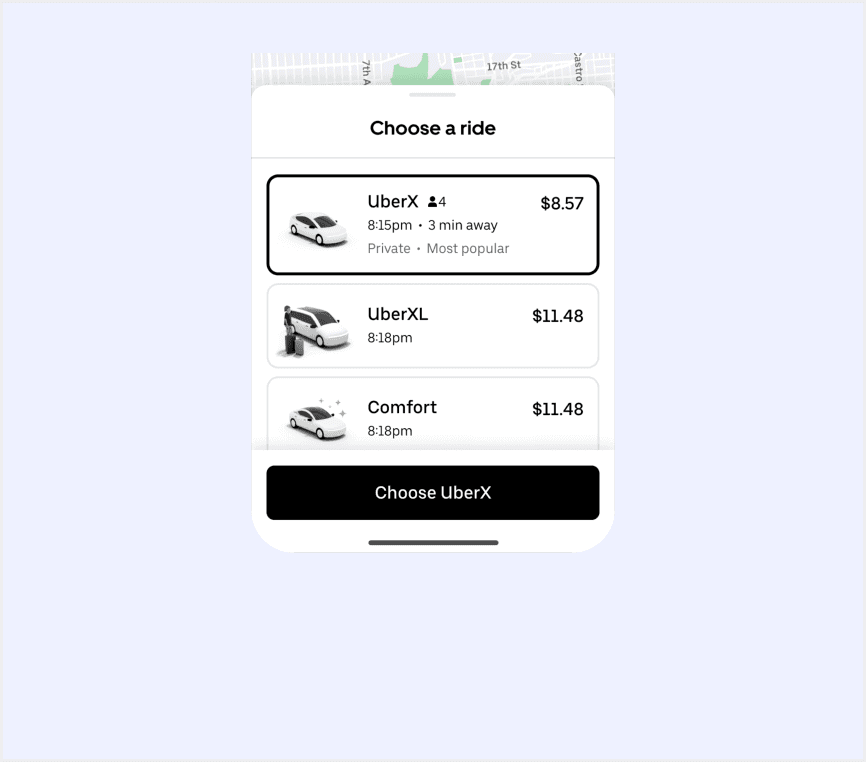
Enumerates the default appearances of sheets across various design systems, highlighting their visual characteristics and usability.
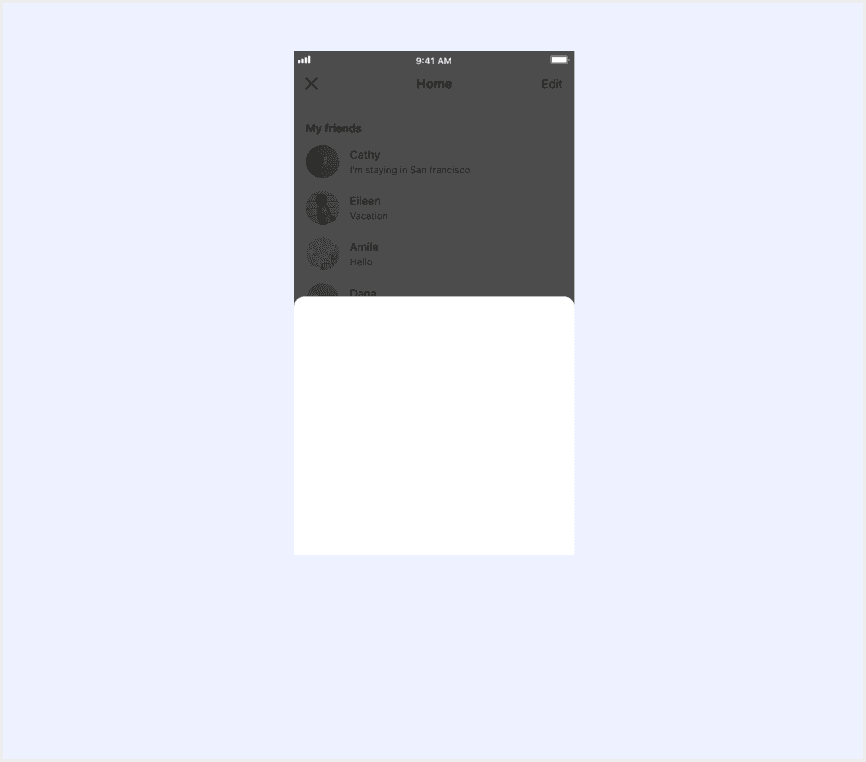
Features comparison in Design Systems
Comparing modals in Material, Ant, HIG, Line, and Mand mobile design system shows differences in size and content support.
Design System
Defines
Interaction Methods
Content Support
Bottom sheets show secondary content anchored to the bottom of the screen.
Swipe to close
Tap outside to close
Button to close
List items
Media
Dividers
An action menu panel that slides up from the bottom.
Tap outside to close
Button to close
Basic option buttons
Hint text
Icons
Dividers
An action sheet is a modal view that presents choices related to an action people initiate.
Tap outside to close
Button to close
Action Grouping
Bottom Action
Text
Support scenario-relevent operations.
Tap outside to close
Title of Operation Instructions
Basic option buttons
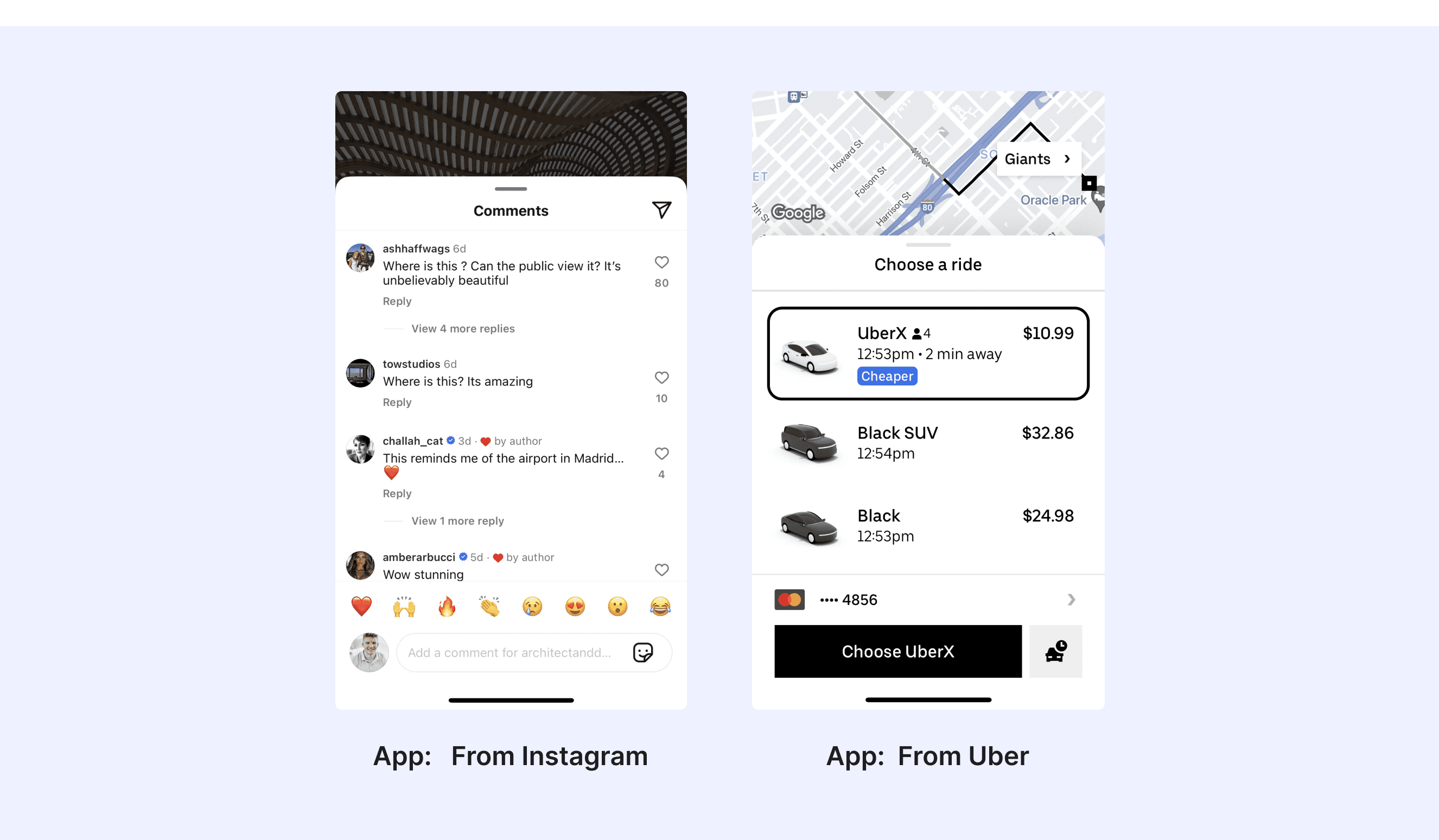
Sheets allow users to interact with two surfaces simultaneously. In Uber apps, sheets are often used to display related information, like location results, on top of a map.
"X" icon button on the right
Primary button to submit their changes, e.g., “Save” or “Done” in a button dock
“Cancel” button in a button dockESC on the keyboard (supplemental)
Overlay behind the sheet (supplemental)
Text Content
Lists
Charts or Images
Buttons and Action Items
Nested Components
Bottom sheet is a surface fixed at the bottom of the screen which includes content related to the previous screen.
Tapping an item that triggers action
Tapping the Scrim
Swiping the sheet down
Via Close Button
Content Area
Flexible Configuration
Date Picker
Header Area
Navigation Bar
Search BarTabs
Button Area
Buttons
Checkboxes
Switch
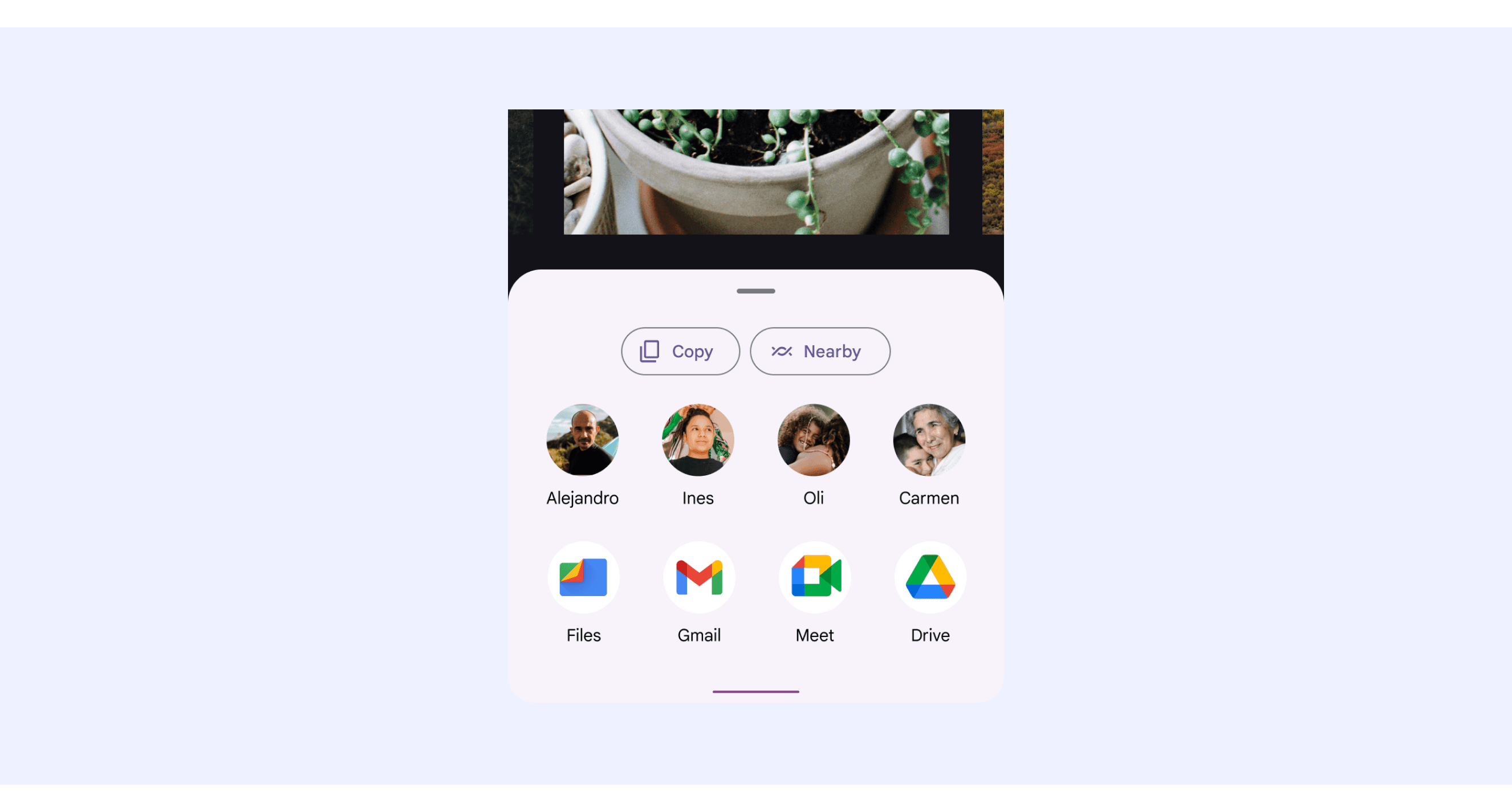
Material Design system supports Bottom Sheets that can include rich media content, contacts and applications.
Bottom sheets can include rich media content such as thumbnails, images, illustrations, and videos.
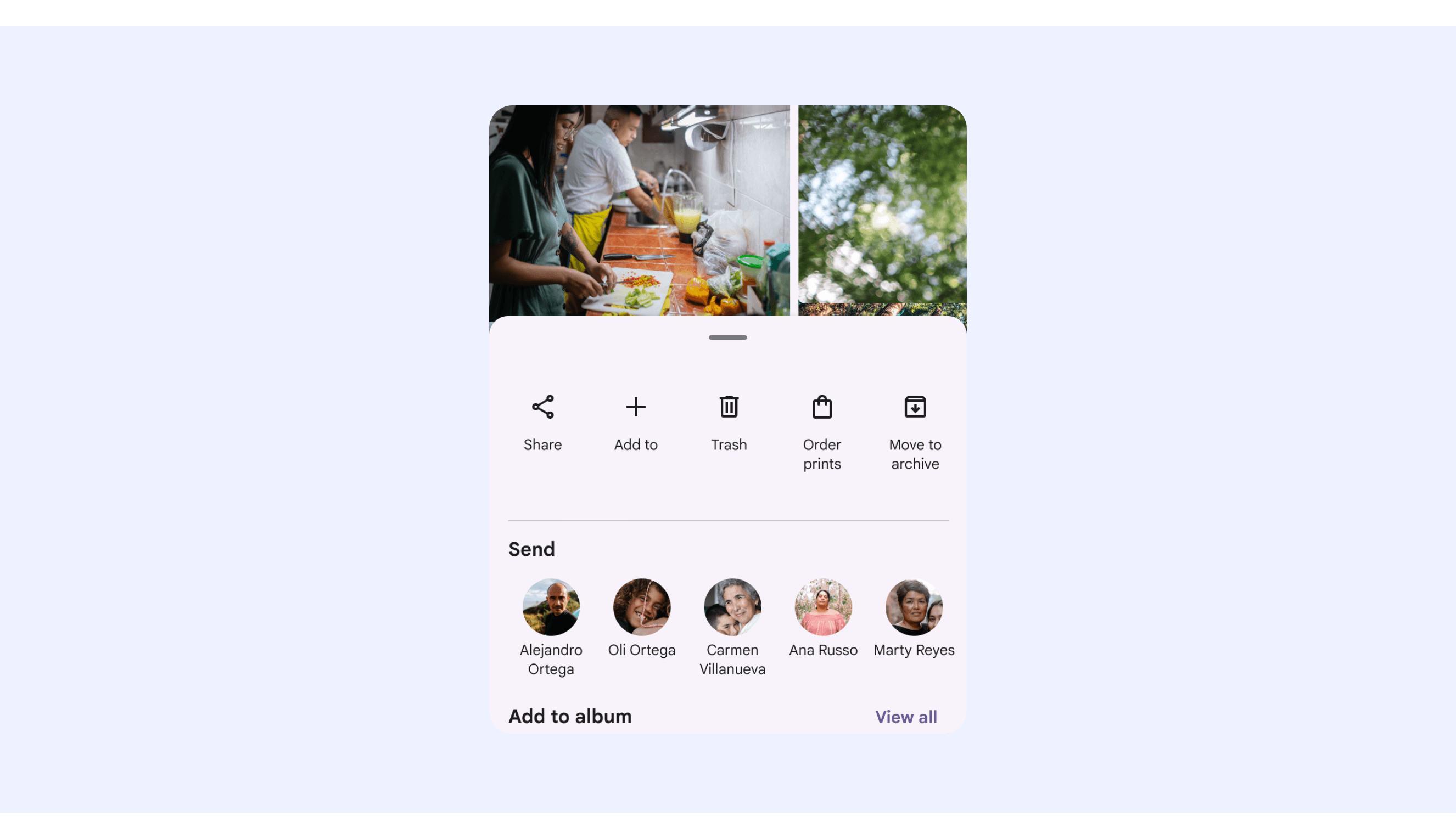
Sheets can display content such as a contact list, including names or avatars, and applications.
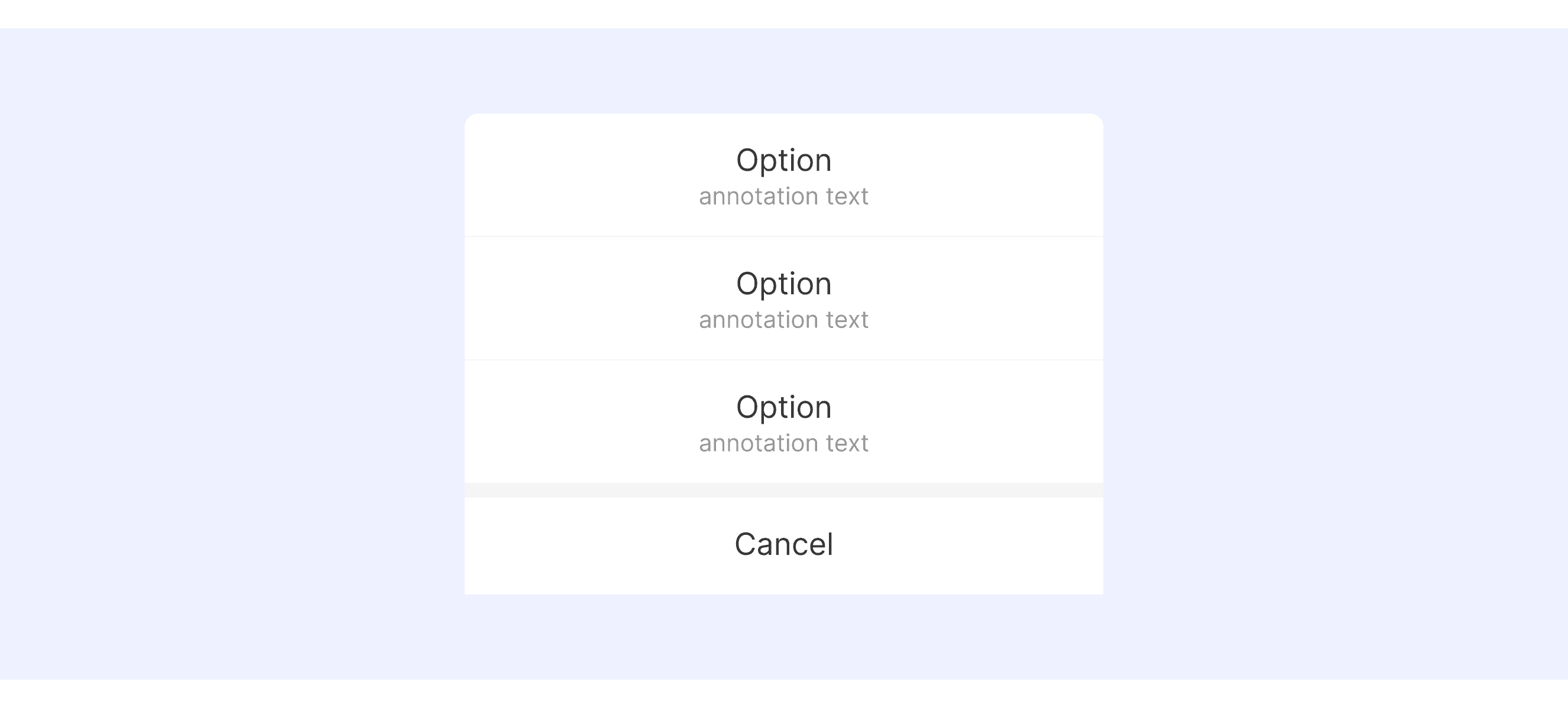
Ant Design Mobile supports “sheets with Hint text”.
Sheets need to provide enough information to help people understand their choices.
Sheet Template for Motiff
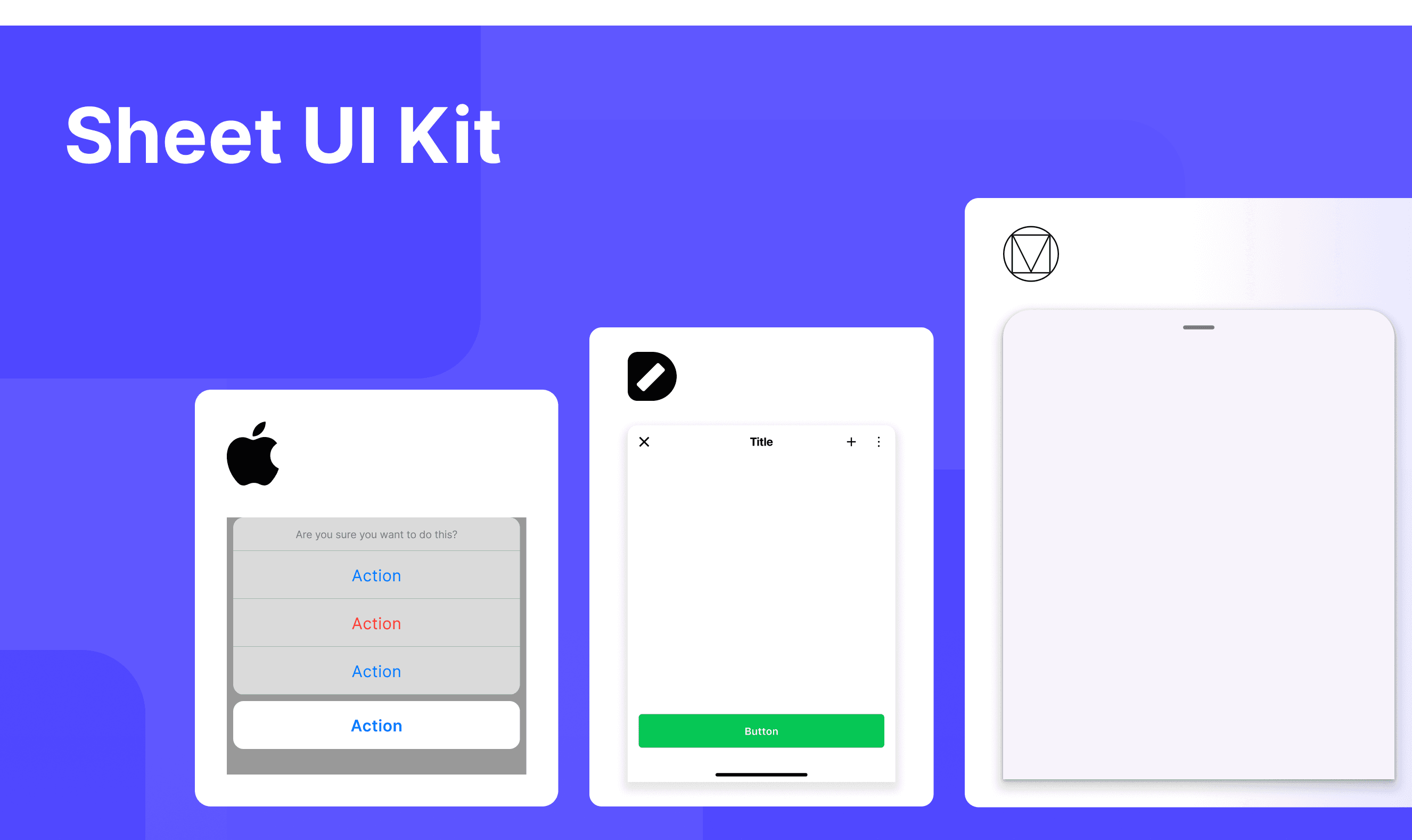
This UIkit file combines sheet designs from Material, Ant, HIG, Mand mobile, Line, and Base web design system. It showcases their styles, usage, and customization in one place for easy exploration and selection.
Sheet vs. Drawer: Difference and When to Use
In user interface (UI) design, the terms "sheet" and "drawer" are often used interchangeably, but they have distinct meanings, which are adapted from a Medium Community discussion.
Drawer: The Drawer component is perfect for scenarios where users need quick access to navigation or additional options without leaving the current view:
Side navigation menus in dashboards.
Filters or settings that slide in from the side.
Forms that need to remain visible without blocking the main view.
Sheet: The Sheet component offers more flexibility than a drawer, making it ideal for:
Full-screen overlays on mobile devices.
Detailed modals with adjustable sizes and positioning.
Content that requires user focus, such as forms, account details, or settings panels.
Accessibility in Different Design Systems
Common Practices
Clear Content Hierarchy: All design systems emphasize the hierarchical structure of Sheet content, with titles used for overviews and subtitles or grouped content providing context.
Clear Actions: Content typically includes clear action options (such as buttons or clickable list items) to guide users in completing tasks.
Responsive Design: Ensure the Sheet adapts to different screen sizes and orientations while maintaining good usability.
Differences Practices
Material Design: Icons or thumbnails can be included to enhance visual cues (e.g., user avatars or file types).
HIG: Sheet design focuses on simplicity and contextual relevance, avoiding excessive distractions.
Ant Design Mobile: Provides corresponding toast notifications after performing actions.
Mand Mobile: Cancel selection interaction is relatively simpler compared to other design systems, only supporting 'Tap outside to close.
Base Web: The supported content types are quite rich and can cover various scenarios. For example, the sheet header includes styles such as Progress Bar variants.
Line Design System: The definition of header area usage is more flexible, supporting various content types such as tabs, not just a single title.
Code Examples
Explore default modal implementations in Ant Mobile and Mand Mobile. These examples showcase standard usage, default settings, and core features across design systems.
Ant Mobile Design
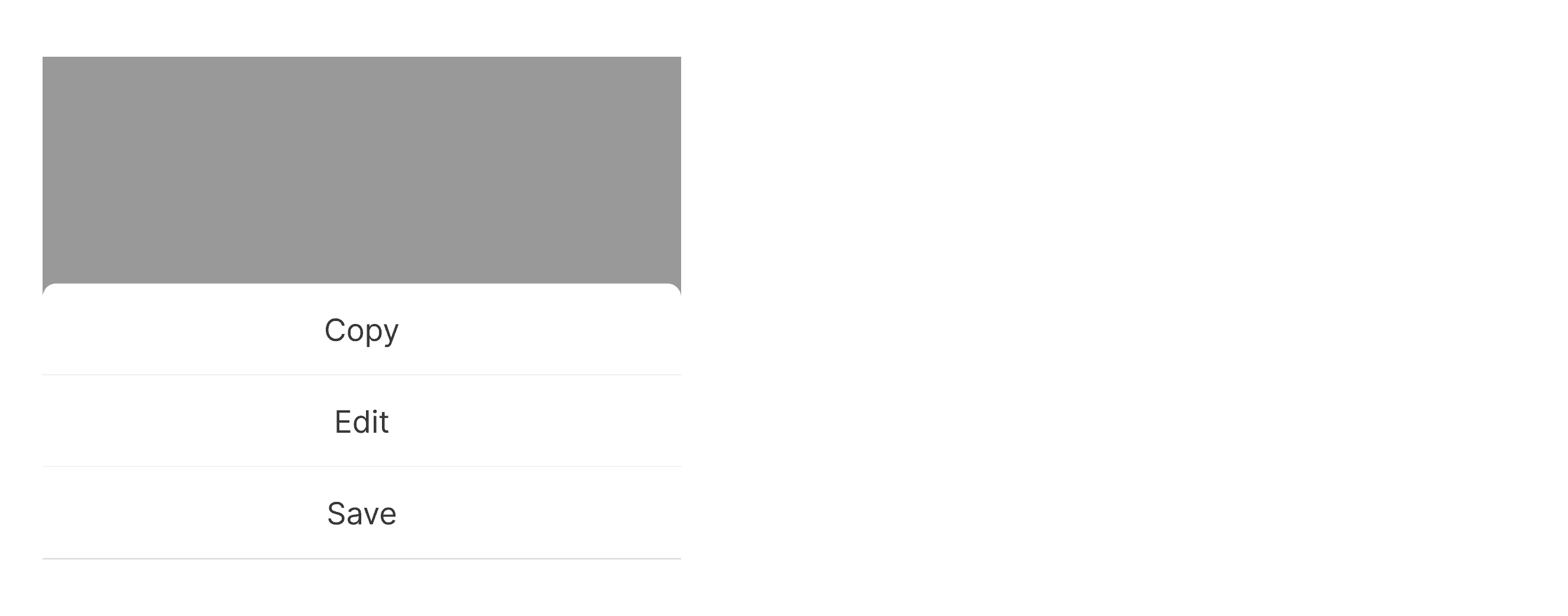
Mand Mobile Design